
Description
Merge Multiple Excel Files Into One – Downloadable Digital Tool
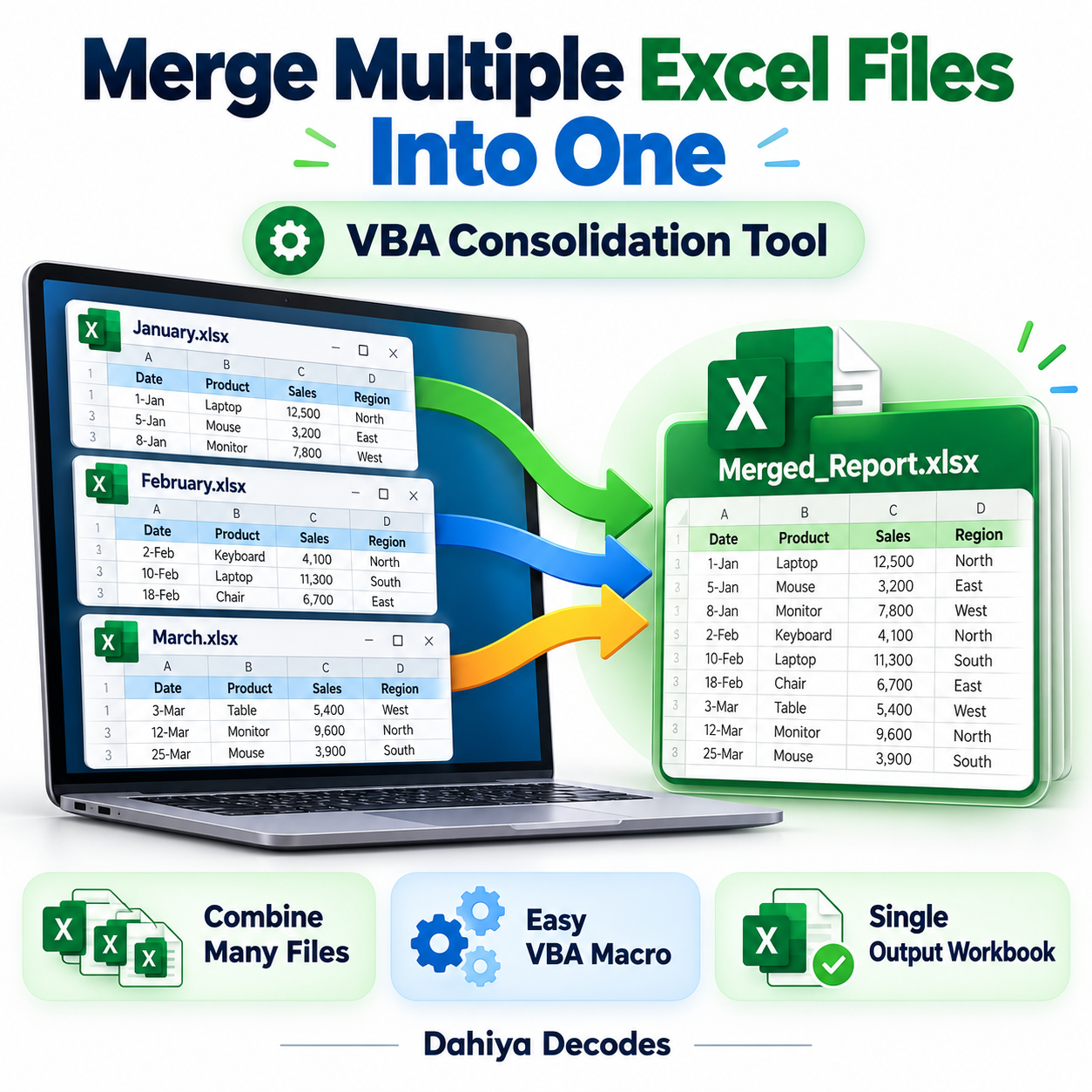
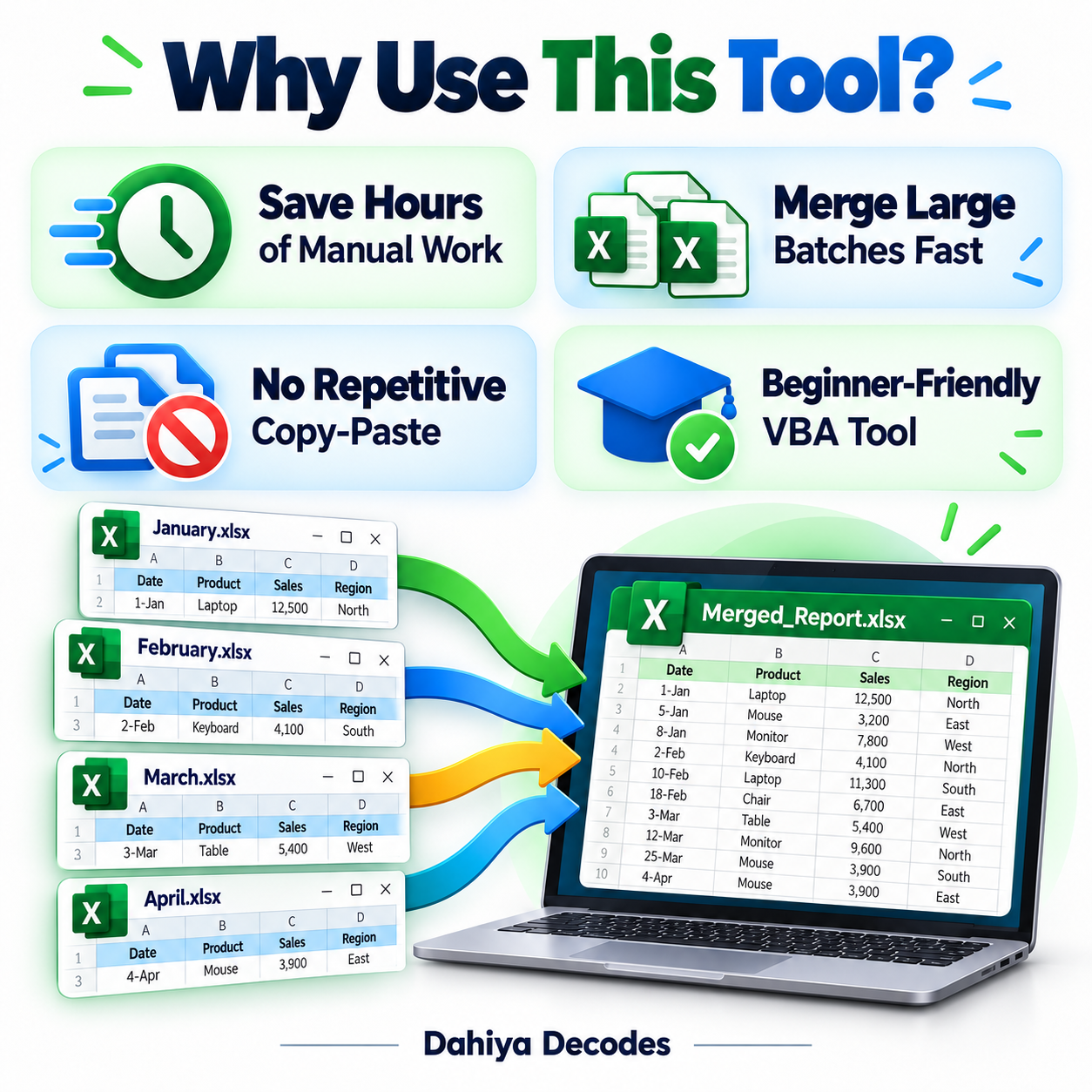
Merge Multiple Excel Files into One – VBA Consolidation Tool helps with supplier price lists, stock sheets, catalog reports, recurring exports and other Excel data with consistent header naming. Consolidate Excel worksheets from a chosen folder into one master sheet using matching column headers. The digital product is a downloadable .xlsm (Excel macro) file intended for users comfortable with the stated software requirements.
What This Tool Does
- Select a folder of Excel workbooks
- Combine data from multiple worksheets, not only one sheet per file
- Build a master set of unique column headings
- Place values beneath matching headers when source column orders vary
- Include the original worksheet name for each imported data row
How to Use This Tool
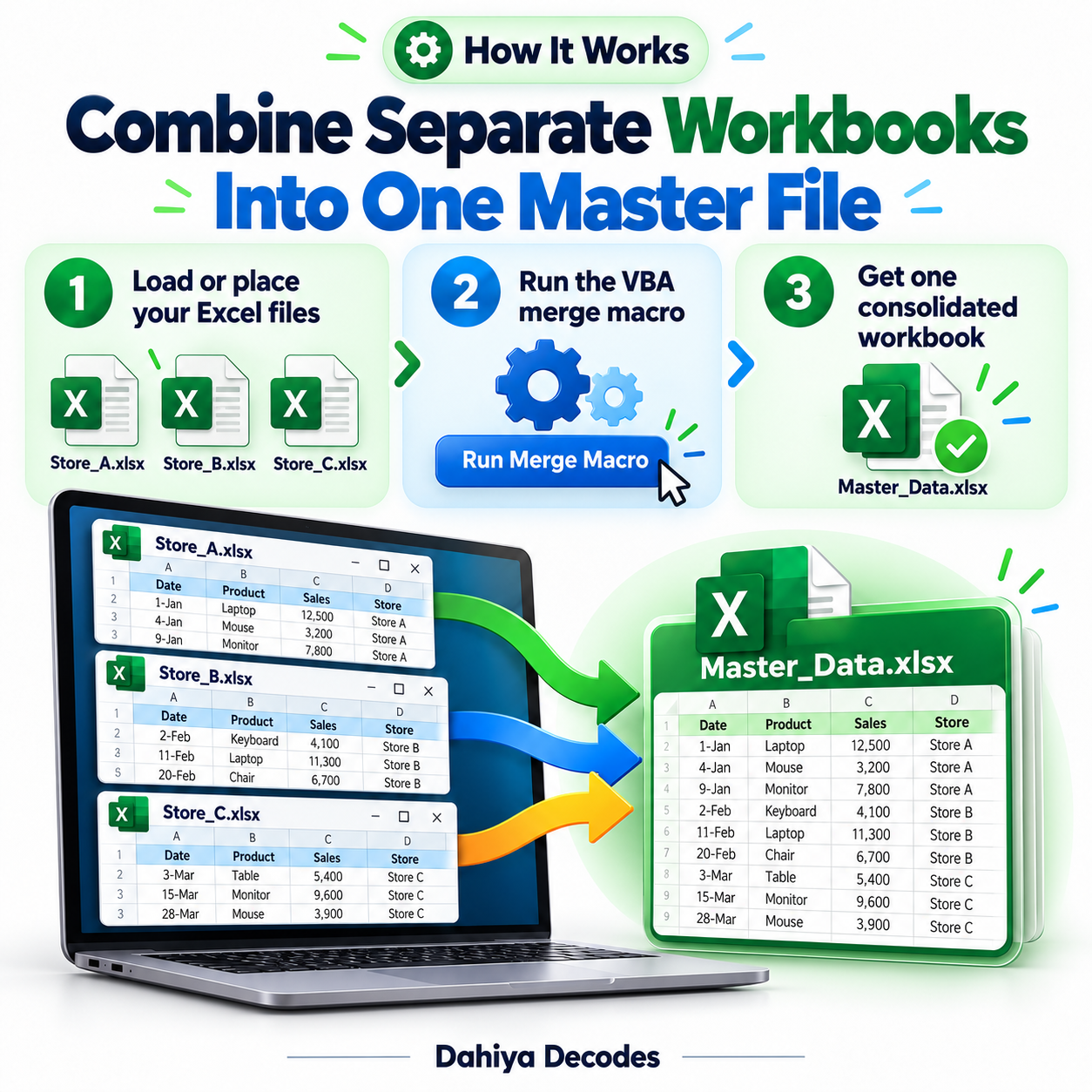
- Store the source Excel workbooks together in a dedicated folder. Remove prior Macro Output.xlsx results from that folder.
- Open this macro-enabled Excel workbook in Excel for Windows.
- Choose Developer > Macros (Alt+F8) and run MergeExcelFilesToMasterSheet.
- Select the source folder in the folder picker.
- After processing, open Macro Output.xlsx and check the headings, source sheet names and merged row counts.
File Format, Input and Requirements
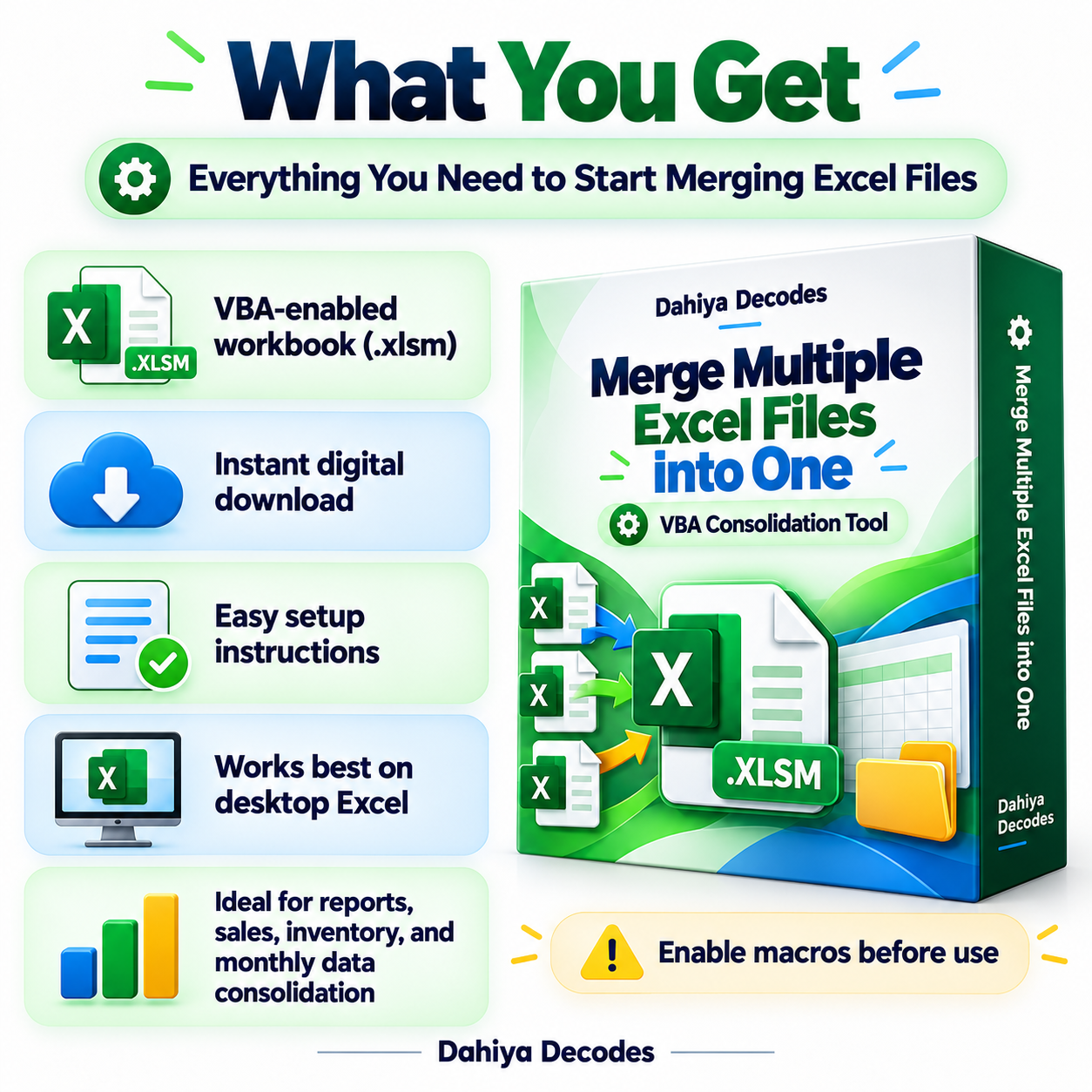
- File format: .xlsm (Excel macro)
- Compatible platform: Microsoft Excel desktop for Windows
- Requirements: Excel VBA/macros permitted in your security settings
- Input: Excel workbooks in one chosen folder; headers in row 1 of each worksheet, and data from row 2 onward
- Output: A new workbook named Macro Output.xlsx in the selected folder, with a MasterSheet tab
Before You Run It
The macro opens all matching *.xls* files in the selected folder and saves a file called Macro Output.xlsx there. Do not put the macro workbook or an earlier Macro Output.xlsx in the source folder. Files with inconsistent spelling of headers create separate columns, and merging does not deduplicate rows. Backup your originals.
Microsoft may block downloaded VBA macros by default. Review the code and follow your organization’s security policy; never enable macros from an untrusted source.
Where It Helps
Helpful when supplier workbooks contain different column orders but share common headings.
Frequently Asked Questions
Are columns merged by position?
No. The macro matches columns by their first-row header values.
Will it remove duplicate records?
No. Rows are appended as found; remove duplicates later if needed.
Where is the output saved?
As Macro Output.xlsx in the folder you selected.
Delivery and Support
This is a digital product; no physical shipment is included. A working downloadable file must be attached to the WooCommerce product before it is published for sale. Confirm your software compatibility and review all cautions before purchase. Product functionality depends on your local setup and any external services involved.


Reviews
There are no reviews yet.